The video player interface
(Click an image to see a larger view in a new tab or window)
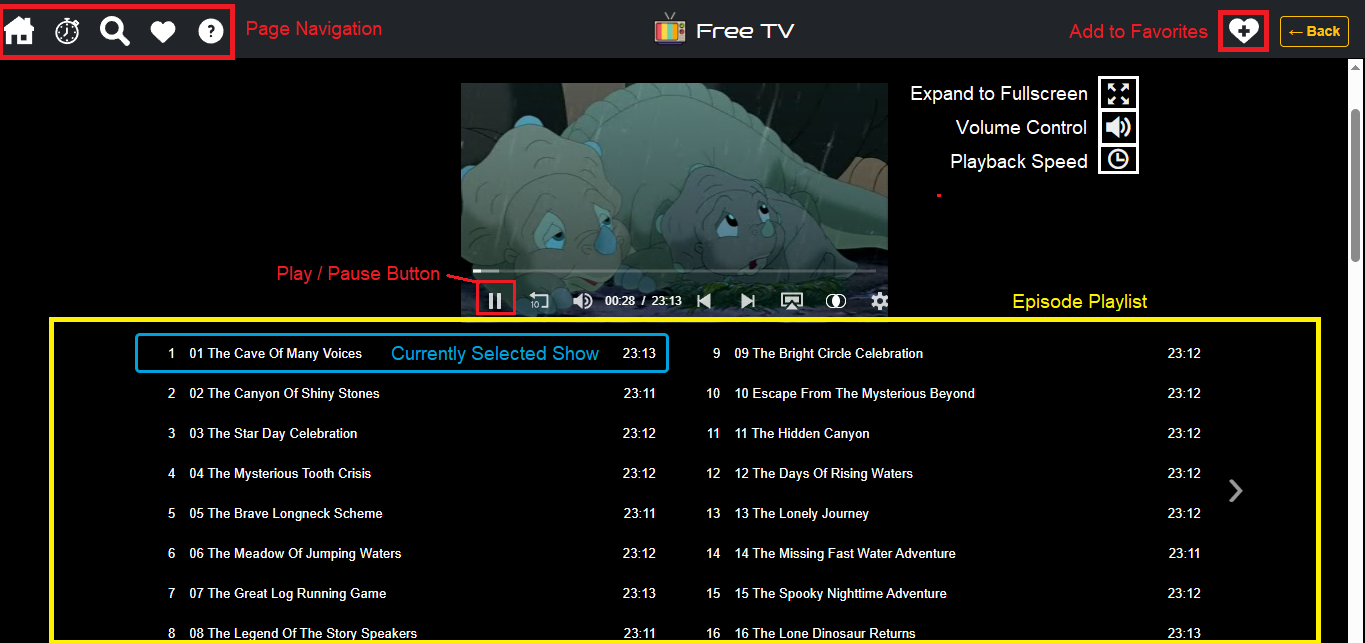
Large Screen
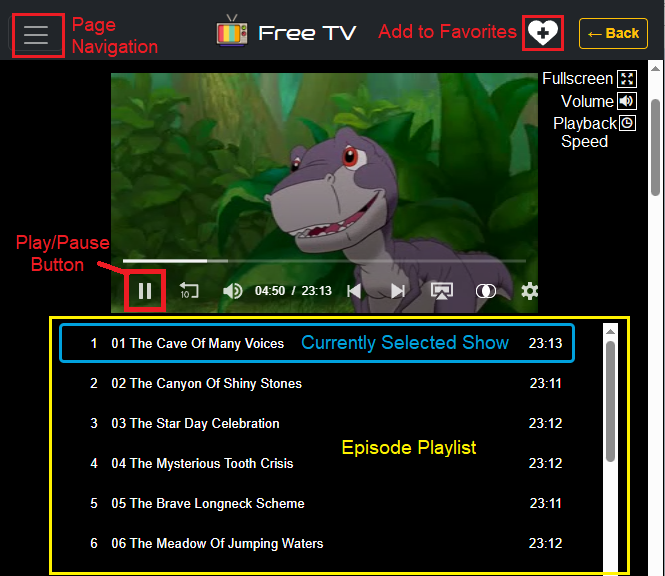
Small Screen
-
Use the Page Navigation Menu to exit video and visit another page
-
Use the Back button to return to the previous page
-
Click the fullscreen icon (or double-click/tap on a playing video) to expand to full screen
Episode Playlist Navigator
On larger screens, the Internet Archive breaks Episode Playlists into smaller "chunks" (or "cards") and only displays a few episodes at a time. This makes it easier to navigate a large Episode Playlist which contains a lot of videos. Only a small group of titles will be displayed in the Episode Playlist at a time (see the image below). There are dots (or circles) which represent all of the groups of episodes in that playlist. The current group that you are viewing is highlighted with a white dot. You can use the left and right arrows on either side of the dots to navigate forward and backward through the groups of show titles. You can also click on the dots to jump directly to the group of episodes that you want to see.
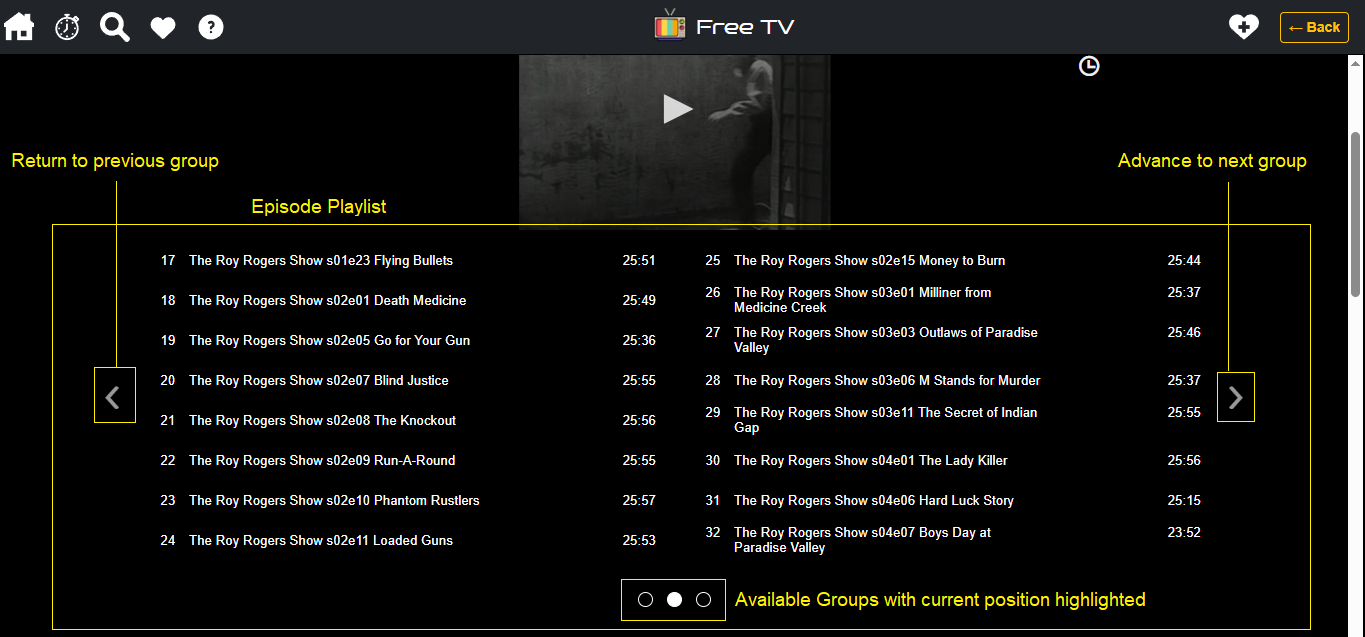
On smaller screens, this Episode Playlist navigator does not appear. All of the episodes available will appear in a (sometimes lengthy) scroll list. You can scroll up and down to select the video episode that you want to watch:
Additional Video Player Options
-
Navigating between videos in the Episode Playlist:
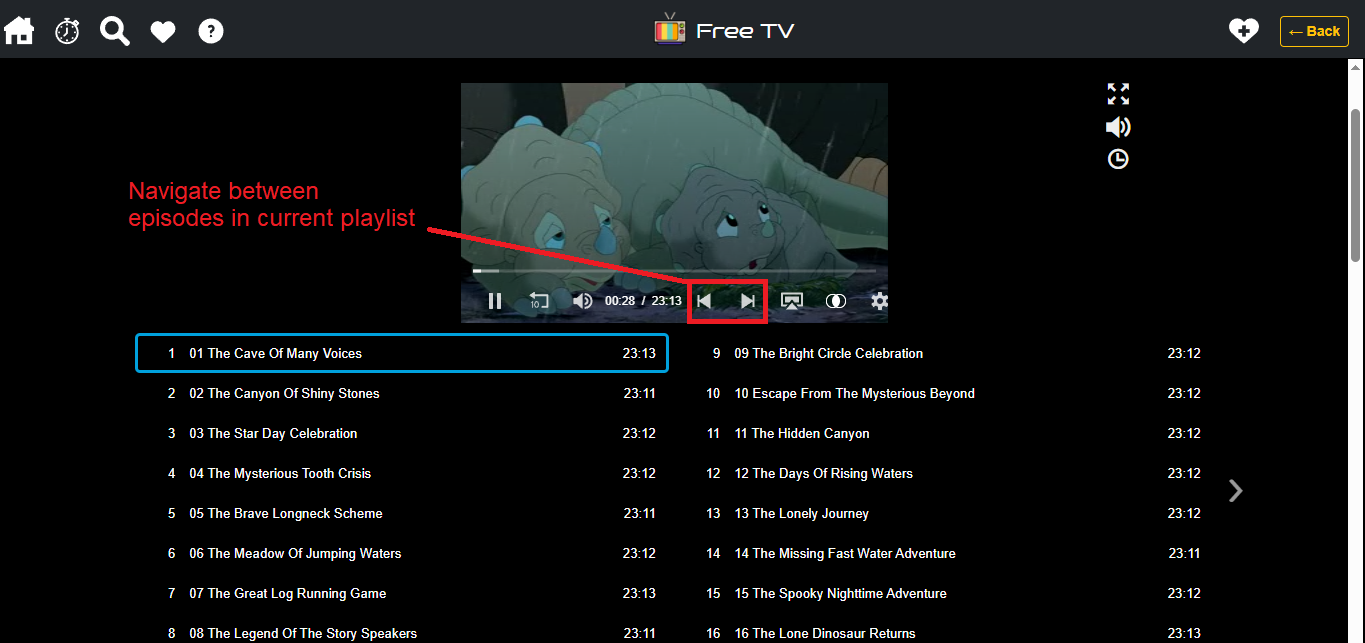
-
Full Screen mode:
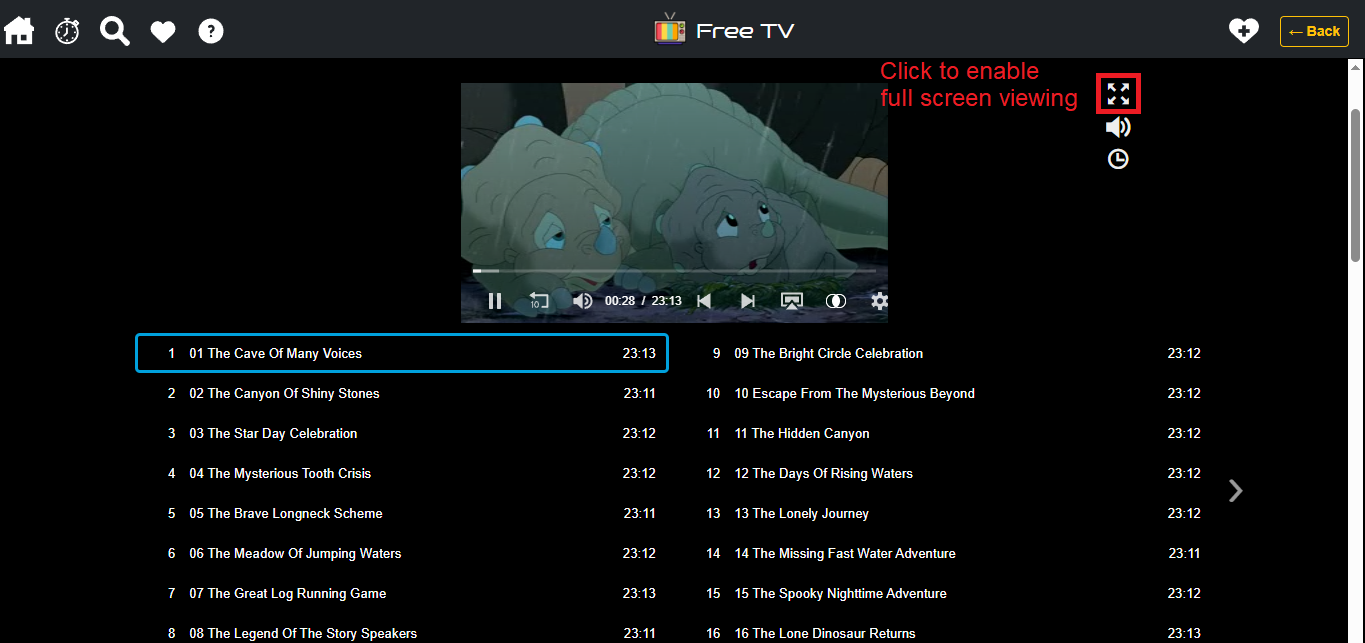
You can also double-click (or tap) anywhere in the video while it is playing to expand to full screen. To exit from full screen mode you can double-click (or tap) again or, if you have a keyboard, press the ESC key.
-
Picture In Picture (PiP) mode:
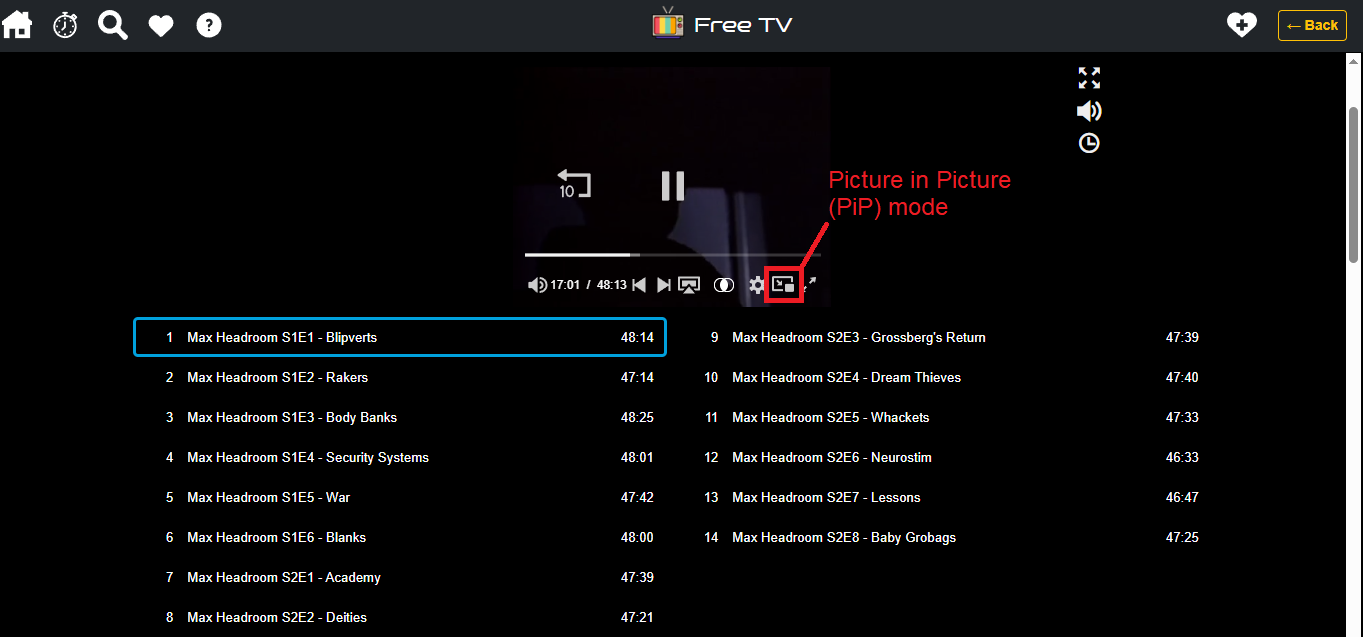
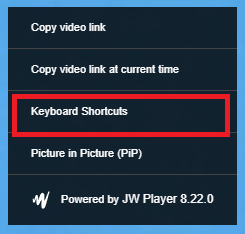
This mode shrinks the video to a small square that you can move around on your screen. This allows you to watch Free TV while you continue to work on other things! Just minimize the browser window while Picture in Picture (PiP) mode is enabled. Whether this icon appears, or works, depends on your device. The PiP feature is typically used for large screen viewing on a desktop or laptop computer. It may not function, or be available on smaller screen mobile devices. You can also enter Picture in Picture (PiP) mode by right-clicking on the currently playing video and selecting "Picture in Picture (PiP)" from the menu:
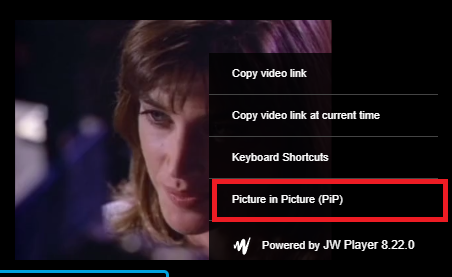
-
Screen casting:
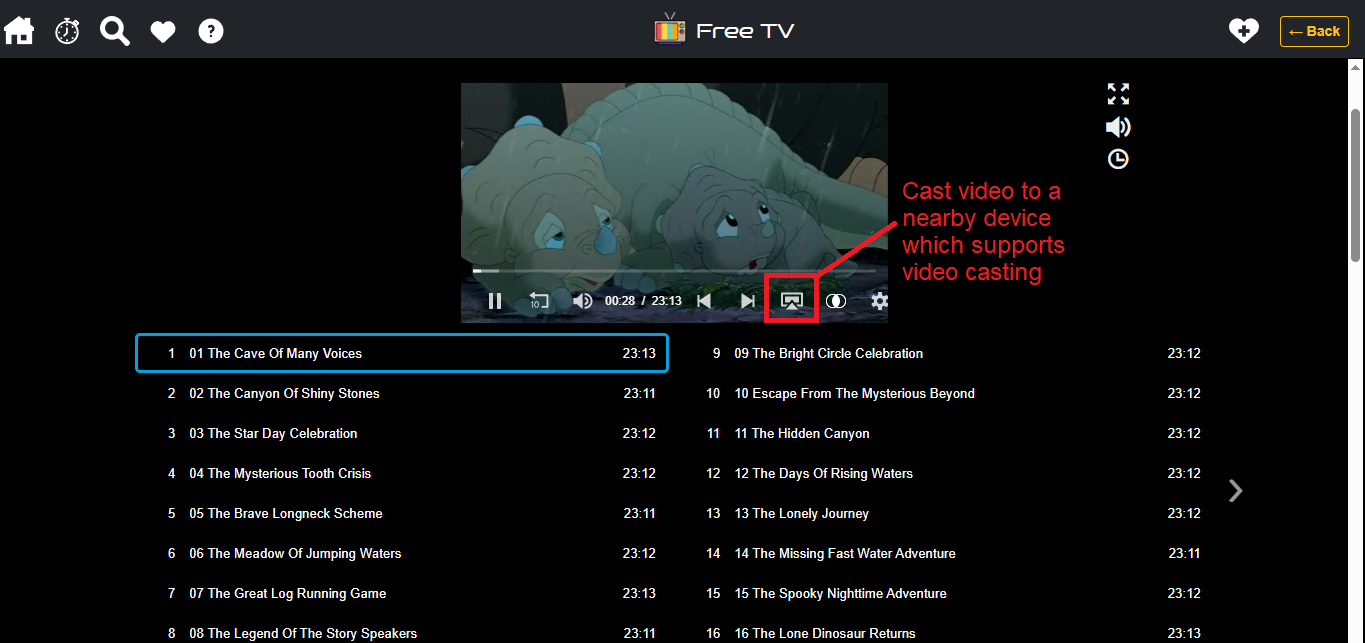
Screen casting allows you to wirelessly stream video from your local device (e.g. a phone or tablet) to a supported remote device (usually a TV). This typically involves a smart TV or device connected to the TV which supports screen casting. You can learn more about how to Cast from Chrome to your TV from Google. There are other instructions available explaining how to set it up using the Firefox web browser or, by using Apple AirPlay with iOS devices.
-
Rewind 10 Seconds:
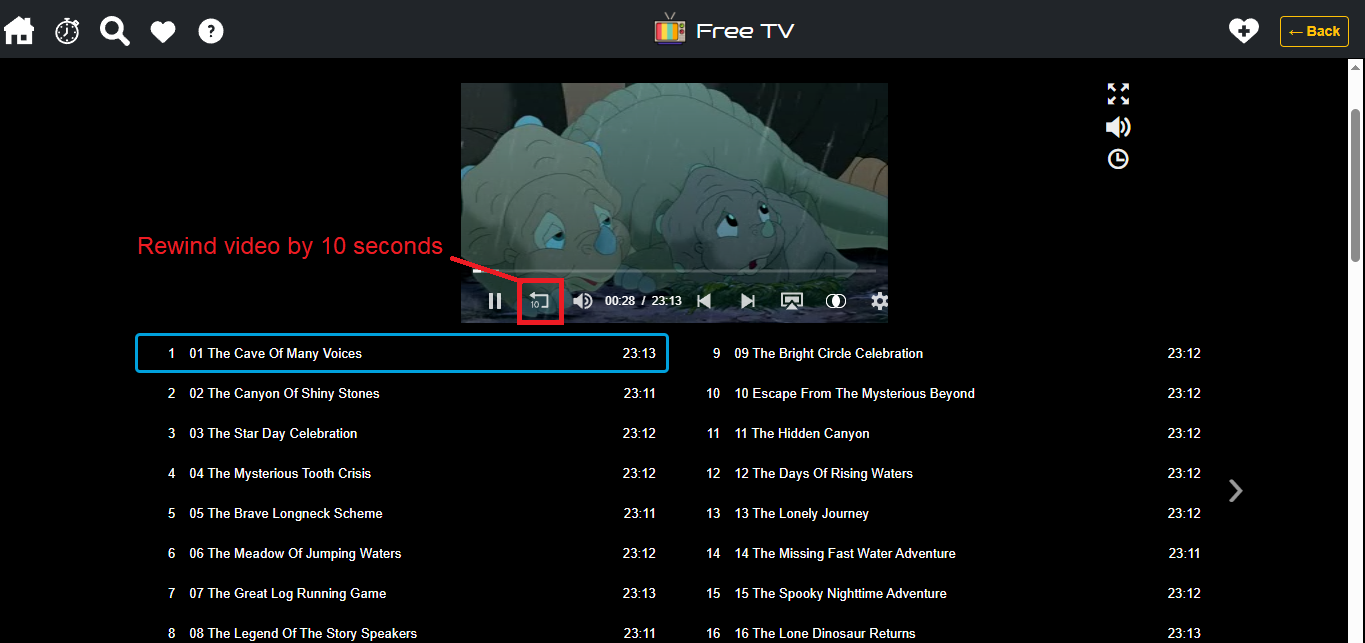
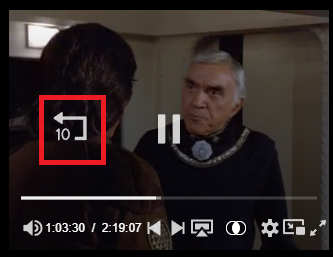
If you hover your cursor over the video while it's playing, it should reveal a "Rewind 10 Seconds" icon (see below). You can click this to jump back 10 seconds and replay anything you missed. Just hover and click one time. Note: this icon only appears when the video is not playing in fullscreen mode. If you are in fullscreen mode, click the icon in the video control toolbar (see above).
-
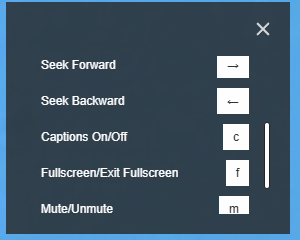
Keyboard Shortcuts:
While a video is playing, if you right-click, you'll see a menu appear. One of the options in this menu is "Keyboard Shortcuts". If you click this, a menu will open showing you all the options for controlling the video via keyboard commands: