How to use the Favorites feature
 The Favorite Shows list is a collection of show titles that you create by manually adding shows to it. By default, Favorite Shows is empty and nothing is added to the list unless you click to add a show title. Do do this, click on the Additional Actions Menu button on a show title button and a menu will appear. From this menu, select "Add to Favorites". You should see a confirmation message letting you know that the show title was added. From this point foward, when you return to the Favorites page, you should see the show title you added.
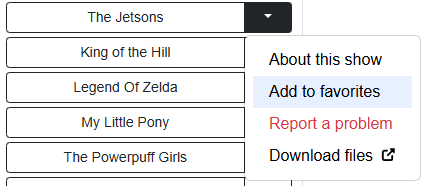
Add to Favorites Button
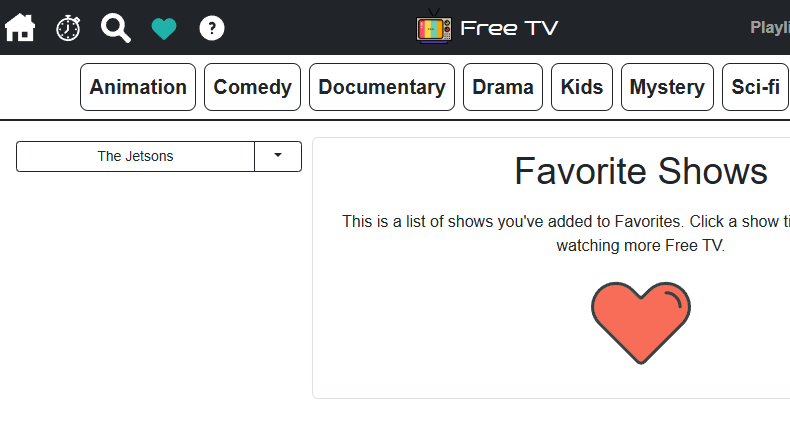
Favorites List
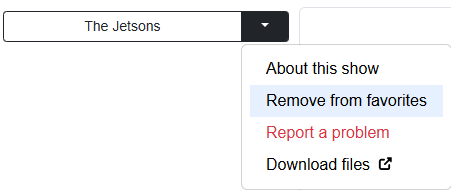
To remove an item from your Favorites, go to the Favorites page and find the item you want to remove. Click the Additional Actions Menu button on the show title and a menu will appear. Click on "Remove from favorites". You should see a confirmation message letting you know that the show title was removed and the item will disappear from your Favorites.
Add To Favorites While Watching A Show
While you are watching a show, you will see a heart icon with a plus sign in the navigation bar in the top right of the screen. If you click this button, it will add the current show you are watching to your Favorites:

After a show has been added to your Favorites, the icon will appear highlighted (see below). To remove the show from your Favorites, just click on the icon again and it will change back to the unhighlighted state indicating that it's no longer a part of your Favorites:
 Show Has Been Added to Favorites