Overview of the Free TV interface
(Click an image to see a larger view in a new tab or window)
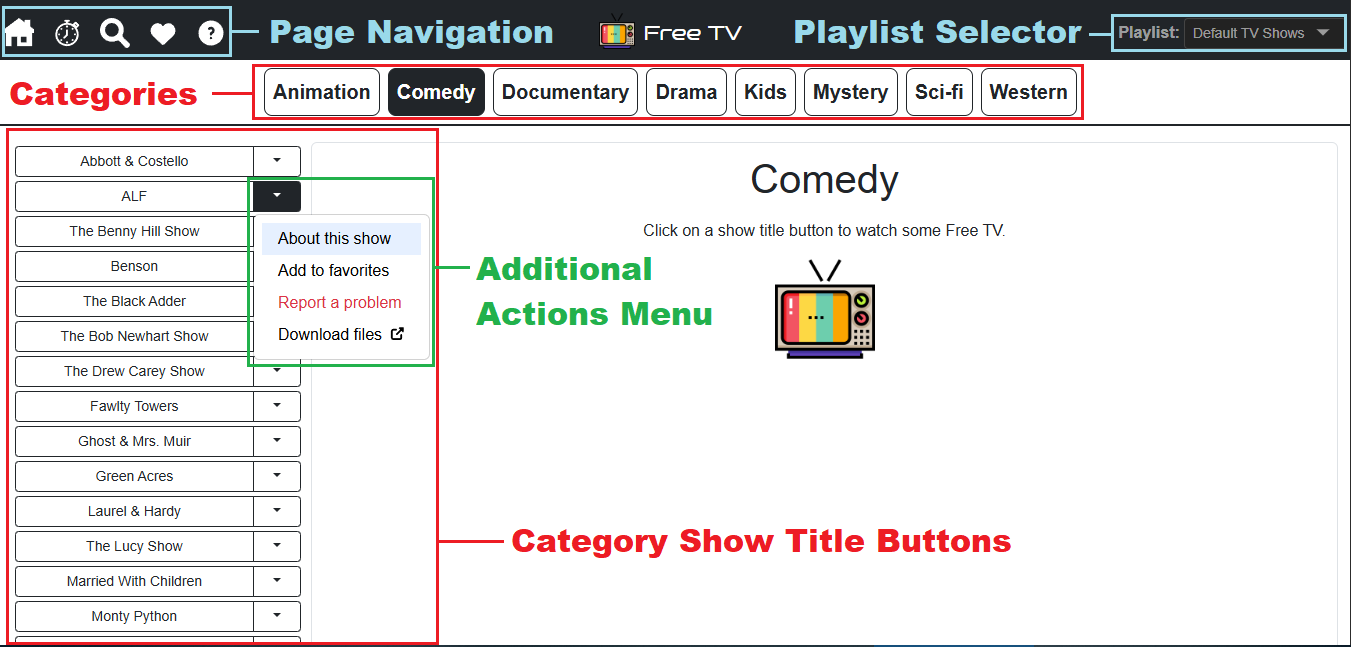
Large Screen
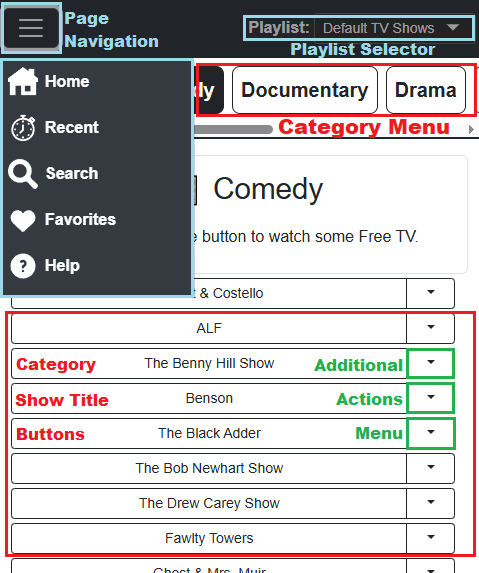
Small Screen
Watching A Video
-
The default Playlist starts with "Default TV Shows"
-
Click on a Category from the Category Menu
-
A list of Show Title Buttons will appear after you select a category
-
Click a Show Title Button to watch a video
-
Click the down arrow on each Show Title Button to reveal the Additional Actions Menu
Shows With Multiple Seasons
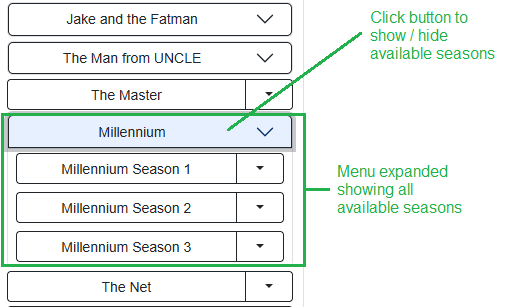
As you are browsing categories you will notice that some Show Title Buttons look different. These buttons indicate that there are multiple seasons available to watch. When you click one of these buttons, a menu will expand showing all the available seasons. Each of these seasons contains the standard "Additional Actions Menu" which appears when you click the down arrow on the button. This will open a drop down menu to perform actions on the specific season number you clicked on (e.g. download files).
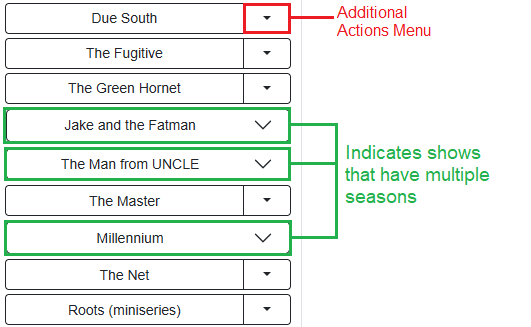
To open or close the multiple season menu, just click the Show Title Button again. This will toggle the menu: